10-Minute Home Camera Security Checklist for Accounts, Storage and Remote Access
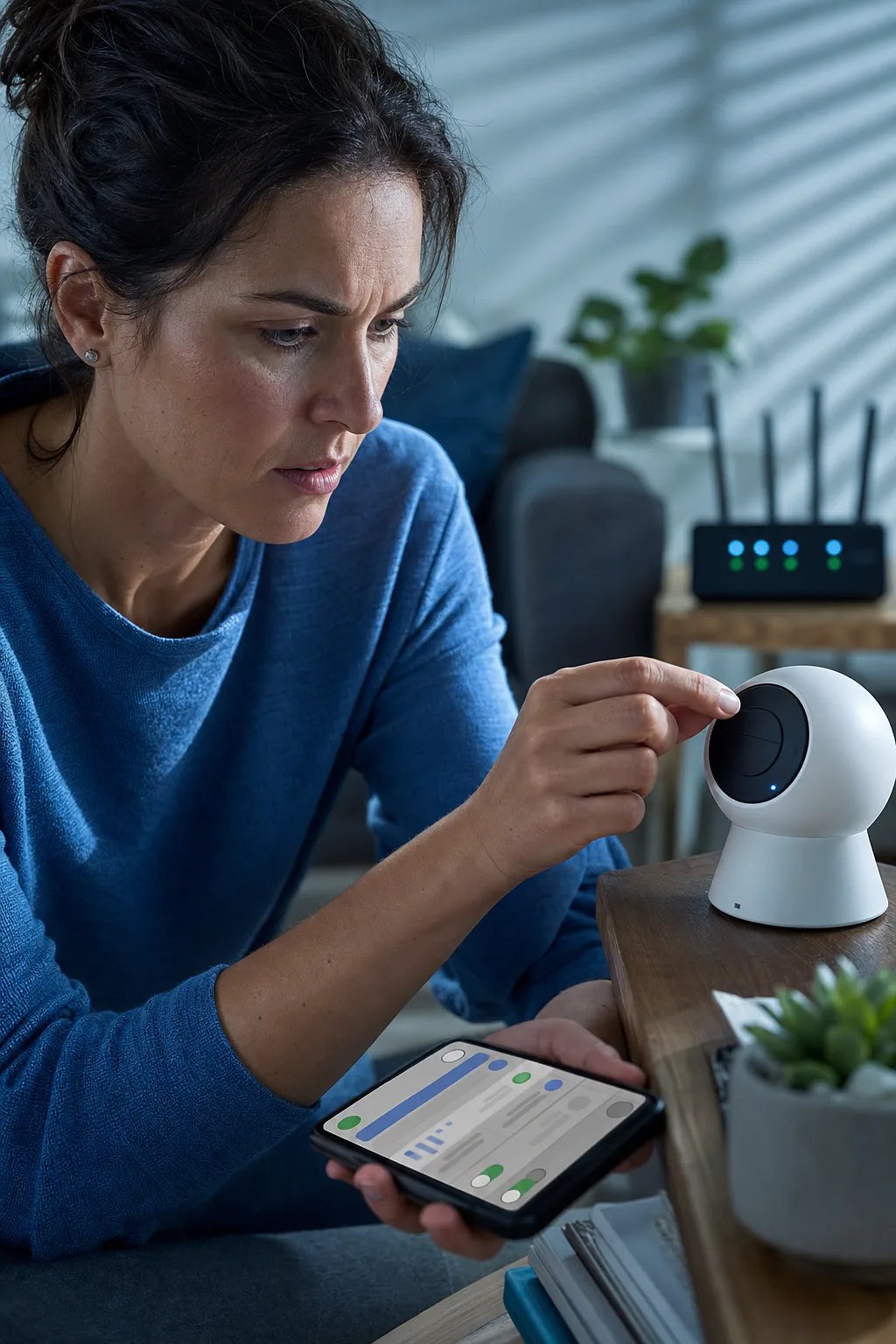
If you have just installed an internet-connected home camera—or received a security incident notice—you should check it immediately. In about 10 minutes, you can review the settings most likely to affect footage of your children, pets or home. The original article on Injoys turns that task into a practical, product-neutral checklist.
Start with your account and updates
You begin in the manufacturer’s official app, using your camera account details, recovery email address or phone number, and router administrator information if needed. You should replace both default and reused passwords with separate, unique values. Check any additional Device, Administrator, RTSP, ONVIF or NVR Connection passwords too.
You should then enable two-factor authentication, confirm your recovery details, remove unknown logged-in devices and activate new-login notifications where available. If your product lacks two-factor authentication, a strong unique password and disabled remote viewing become especially important.
The review also explains why you should update both firmware and the mobile app through official channels, enable automatic updates, and record any published end-of-support date.
Read the full article on Injoys
Understand where your footage goes
You may store video in the cloud, on a microSD card, or through an NVR or NAS—a local recorder or network storage system. None is automatically safest. You need to compare retention periods, deletion methods, backups, server country, access controls and protection against theft or account compromise.
A particularly useful section distinguishes encryption in transit, encryption of stored data and end-to-end encryption. You are reminded that a lock icon alone does not prove end-to-end protection, so you should consult the manufacturer’s privacy and security documentation.
Reduce unnecessary access
- You can disable Remote Access, External Viewing, P2P Connection or Cloud Access when outside viewing is unnecessary.
- You should remove needless port forwarding and consider disabling UPnP, while noting that doing so may affect consoles or other smart devices.
- You can place the camera on a guest or dedicated IoT network if your router supports it.
- You should give each family member a separate account with only the permissions required.
- You can use a physical shutter or power cutoff when recording is unnecessary.
You also learn an important limitation: a lens cover blocks video, but not microphone input or network communication. For full privacy, you must check for microphone-disable or power-cutoff features.
Know what to do if something looks wrong
Unexpected camera movement, unknown login alerts, unfamiliar shared users, deleted footage, repeated setting changes or voices through the speaker justify an immediate check, although they do not necessarily confirm hacking.
The article gives you an ordered response: disconnect power or internet access, preserve screenshots and login records, change your email and camera passwords on a trusted device, end all sessions, remove shared users, restore two-factor authentication, check official security notices, and reset only after preserving evidence. If you suspect a privacy violation or crime, you should contact your local police or cybercrime reporting agency.
Use the original article on Injoys for the complete checklist, including router checks, buying criteria, family sharing, audio features, and secure disposal steps.


Comments
Post a Comment